home  photos  gifts  tips & ideas
 snapfish by HP
sign up!  |  log in
how snapfish works


Main Help Index
Signing Up & Logging In
Viewing Your Photos
Your Account
Address Book
Tell a Friend
Uploading Digital Photos
Emailing Digital & Mobile Photos
Printing Digital Photos at Home
Sharing Photos with Friends
Add Photo Borders
Edit & Organize
Fixing & Enhancing Photos
Photo Resolution
Ordering Prints
Poster Prints
Creating Photo Gifts
Creating Calendars
Creating Photo Books
Buying Hi-Res Photos
Creating Photo Cards
Product Pricing
Returns & Refunds
Delivery Time
Privacy Policy
Online Security
Customer Service
Legal Notices
Storage of Online Photos

 
go to: help index
Creating Photo Cards
Overview
How to Create Photo Cards
How to Create Premium Photo Cards
How to Create Photo Note Cards
How to Create Photo Greeting Cards
Common Questions About Photo Cards
 
Overview
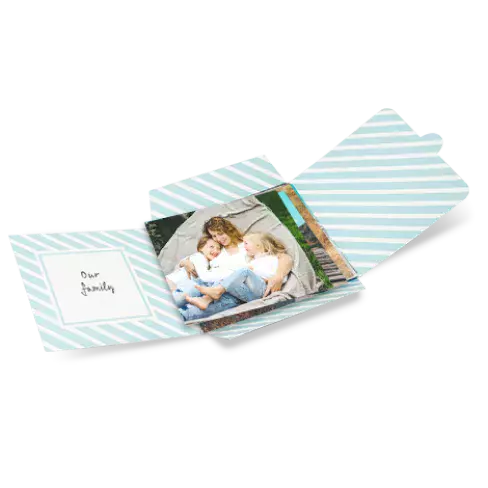
You can use any photo in your Snapfish account to create custom photo cards with a personalised message. Multi-photo card designs available are also available. Keep in touch with friends and family with unique Christmas cards, birthday cards, baby announcements, thank-you notes, and more. All cards include envelopes.

We offer the following types of photo cards:

  • 8" x 4" (203 x 100 mm) photo cards (set of 20)
  • 8" x 4" premium photo cards (set of 20)
  • 7" x 5" (175 x 125 mm) photo greeting cards (sold individually)
  • 4.25" x 5.5" photo notecards (set of 12)
If you would like to create a photo card from a digital photo saved on your computer, upload the photo into your Snapfish account, and then follow the instructions below. For more info about uploading, see our help page.

The minimum recommended resolutions are as follows:

Card size Recommended photo resolution
7" x 5" (175 x 125 mm) 480x640pixels
8" x 4" (203 x 100 mm) card 640 x 426 pixels

create photo cards

back to top | help index
How to Create Photo Cards

Available in 8" x 4" and 7" x 5" sizes, photo cards are sold in sets of 20 and include envelopes. Photo cards can be printed either on photo paper or fine stationery paper.

To create a personalised photo card, follow these steps:

  1. From the homepage, click on the "store" tab, and then on the "cards" section. On the cards and stationery page, click on the "photo cards" box.

    Note: If you'd like your card to be printed on stationery paper, click the "premium photo cards" box.

  2. Next, you'll choose your card design. Use the menu at right to sort designs by card size, number of photos, and occasion. Click on the design you like to select it and continue building your card. You can always switch designs later.
  3. On the next page, choose your card's size and orientation (either vertical or horizontal). Click on the 8" x 4" and 7" x 5" tabs to see all available sizes and layouts, then click on the design you like. A preview will appear at the upper left corner of the page.
  4. Choose the paper type you'd like - either photo paper with a matte or glossy finish, or premium, card-weight matte stationery paper. Once you've chosen your size, orientation, and paper, click the "create this card" button.
  5. Next, you'll start designing your card. To add photos, drag photos from the blue bar at right onto your card. The photos from your latest album will appear automatically. To use photos from a different album, click the "select another album" link. You can also upload new photos for you card - just click the "upload new photos" link. To remove a photo, roll your mouse over the photo and click on the gray "X" that appears.

    Note: You can save your card to your projects at any time by clicking the "save card" button at the bottom of the page.

  6. To add a caption or message to your card, click the "click to add text" box on the card preview. A text box will open. Type in your message, choose your font and colour, then click "apply changes" when you're done. To remove a message, clear the text in the box, then click "apply changes" again.

    Note: You can spell-check your message by clicking the "spell check" button in the text box.

  7. If you're creating a premium photo card, you can also add text and photos to the back of the card. Click on the "back" link below the card preview to see the back of your card and add photos and text.
  8. If you'd like to change your card's design or photo layout, use the blue tabs below the preview to browse designs and layouts, then click on the one you'd like to use.
  9. Once you're happy with your card, click the "order card" button.
  10. On the next page, review your card and enter the number of sets you'd like to order. Your card will be printed exactly as it appears in the preview. If you need to make any changes, click the "edit card" link.
  11. Finally, click the box next to "I have reviewed my card for errors" and add your photo cards to your cart.
back to top | help index
How to Create Premium Photo Cards

Available in 8" x 4" and 7" x 5" sizes, premium photo cards are sold in sets of 20 and include envelopes. They are printed on matte stationery paper.

To create a personalised photo card, follow these steps:

  1. From the homepage, click on the "store" tab, and then on the "cards" section. On the cards and stationery page, click on the "photo cards" box.

    Note: If you'd like your card to be printed on stationery paper, click the "premium photo cards" box.

  2. Next, you'll choose your card design. Use the menu at right to sort designs by card size, number of photos, and occasion. Click on the design you like to select it and continue building your card. You can always switch designs later.
  3. On the next page, choose your card's size and orientation (either vertical or horizontal). Click on the 8" x 4" and 7" x 5" tabs to see all available sizes and layouts, then click on the design you like. A preview will appear at the upper left corner of the page.
  4. To choose stationery paper, click the circle next to "premium photo cards." Once you've chosen your size, orientation, and paper, click the "create this card" button.
  5. Next, you'll start designing your card. To add photos, drag photos from the blue bar at right onto your card. The photos from your latest album will appear automatically. To use photos from a different album, click the "select another album" link. You can also upload new photos for you card - just click the "upload new photos" link. To remove a photo, roll your mouse over the photo and click on the gray "X" that appears.

    Note: You can save your card to your projects at any time by clicking the "save card" button at the bottom of the page.

  6. To add a caption or message to your card, click the "click to add text" box on the card preview. A text box will open. Type in your message, choose your font and colour, then click "apply changes" when you're done. To remove a message, clear the text in the box, then click "apply changes" again.

    Note: You can spell-check your message by clicking the "spell check" button in the text box.

  7. You can also add text and photos to the back of the card. Click on the "back" link below the card preview to see the back of your card and add photos and text.
  8. If you'd like to change your card's design or photo layout, use the blue tabs below the preview to browse designs and layouts, then click on the one you'd like to use.
  9. Once you're happy with your card, click the "order card" button.
  10. On the next page, review your card and enter the number of sets you'd like to order. Your card will be printed exactly as it appears in the preview. If you need to make any changes, click the "edit card" link.
  11. Finally, click the box next to "I have reviewed my card for errors" and add your premium photo cards to your cart.
back to top | help index
How to Create Photo Greeting Cards

To create a personalised 7" x 5" (175 x 125 mm) photo greeting card, follow these steps:

  1. From the homepage, click on the "store" tab, and then on the "cards" section. On the cards page, click on the "greeting cards" box.
  2. On the next page, choose the album and then photo you would like to use for your greeting card. To use a photo from another album, click the "choose another album" link.

    TIP: Your card will automatically be horizontal or vertical orientation depending on the picture you selected. To change orientation, click on the "change photo" link under the photo in the greeting card preview.

  3. On the following page, you select your photo greeting card style. Choose between "Photo only" and "Add border". If you select to add a border to your greeting card, you will be taken to a selection of different border designs. To view more designs, click the tabs. To choose a design for your card, simply click on the design you would like to use.
  4. Next, you can add and edit the messages on your card. Click on a text area and write your message. Click on "preview text on card" to see your message on the card. Once you have chosen your photo, designs, and messages, click the "continue" button.
  5. On the final page, you can preview your photo greeting card. Be sure to proofread your message for any text errors. If you would like to make any changes to your card, click the links under "Edit card" on the right hand side.

    TIP: To see a bigger preview, click the "view card larger" link.

  6. Finally, enter the number of photo greeting cards you would like to order in the "quantity" box next to "greeting cards". Check the box next to "I have reviewed my card for errors", and then click the "add to cart" button to begin the checkout process.
7" x 5" (175 x 125 mm) photo greeting cards are sold individually and include envelopes.
back to top | help index
How to Create Photo Note Cards

To create a set of 12 photo note cards, follow these steps:

  1. From the homepage, click on the "store" tab, and then on the "cards" section. On the cards page, click on the "photo note cards" box.
  2. On the following page, you'll see different photo note card designs. To view more designs, click the category links near the top of the page. To choose a design for your card, simply click on the design you'd like to use and you'll be automatically taken to the next step.

    Tip: Your card can be either vertical or horizontal - click the "show vertical styles" or "show horizontal styles" links to view the available designs.

  3. On the next page, choose the photo you'd like to use for your cards from the photo viewing menu on the right. Drag and drop your photo into the photo area on the card. To use a photo from another album, click the "choose another album" link above the photos in the menu.

    Tip: You can edit a photo after you've placed it in the card template by clicking on the paintbrush icon at the bottom left corner of the photo. To remove a photo from a card, click on the grey "X" at the bottom right corner of the photo.

  4. Next, you can add and edit the messages on your photo note card. Click on a text area, a new pop-up window where you can write your own message. Once you've chosen your photos, layouts, designs, and messages, click the "continue" button.

    NOTE: You can add text and photos to the front, back, and inside of your card. Just click on the "front," "inside," and "back" links beneath the preview to design and make changes.

  5. On the final page, you can preview your card. Be sure to proof read your message for any text errors. If you'd like to make any changes to your card, click the "edit card" link underneath the preview.

    Tip: To see a bigger preview, click the "view card larger" link.

  6. Finally, enter the number of cards you'd like to order in the "quantity" box next to "note cards." Check the box next to "I have reviewed my card for errors," and then click the "add to cart" button to begin the checkout process.
5.5" x 4.25" photo note cards are sold in sets of 12 and come with envelopes.
back to top | help index
Common Questions about Creating Photo Cards
What size cards can I order?
We offer the following types and sizes of photo cards:
  • 8" x 4" (203 x 100 mm) photo cards
  • 8" x 4" (203 x 100 mm) premium photo cards
  • 7" x 5" (175 x 125 mm) photo greeting cards
  • 5.5" x 4.25" photo notecards
Can I include a personal greeting or message for my recipient?
Absolutely! You can write your own greeting and message or choose from a list of seasonal and occasional messages that will be printed on your card. You can also choose different designs, and in the case of greeting cards, fonts and borders for your card.

How long does it take to print, personalise, and deliver my cards?
Photo cards are typically printed within 1-2 working days from when you place your order. We will then deliver them out via Royal Mail, and they typically arrive within 3-5 working days. During peak seasons such as Christmas, it may take more time to print and deliver your cards. Please see peak season schedules on the site for more information.

Can I have my cards sent to my recipients for me?
All our photo cards can be delivered to only one address, so you will need to send them to your recipients yourself.

What kind of paper are cards printed on?
8" x 4" (203 x 100 mm) photo cards are printed on high-quality photographic paper. Photo greeting cards are printed on heavy stock paper with a glossy finish. Premium photo cards are printed on premium-quality matt stationery paper, which is ideal for hand-written messages.

What resolution should my photo be to create a card?
To ensure that your photo cards are of the highest quality, your photo needs to meet the minimum resolution requirements. If the photo you have chosen was originally developed through Snapfish, the resolution will be sufficient to produce a top-quality photo card. If you upload a photo to your account to make a photo card, be sure to choose the "Large Print Upload" option when you upload.

The minimum resolution required to produce a 7" x 5" (175 x 125 mm) card from your digital photo is 640 x 480 pixels, and for 8" x 4" (203 x 100 mm) cards, the minimum required resolution is 640 x 426 pixels. Regardless of the source of your photo, we will check its resolution during the card creation process and alert you if the photo resolution is not sufficient.

How much do photo cards cost?
Photo cards are sold either individually or in sets, depending on which type you order. All photo cards come with envelops. Base pricing is as follows below, but please note that the more cards you order, the lower the cost per card or set will be.

Photo card type Base price
8" x 4" (203 x 100 mm) photo cards (set of 20) £6.99/set
8" x 4"(203 x 100 mm) premium photo cards (set of 20) £12.99/set
7" x 5" (175 x 125 mm) Photo greeting cards (sold individually) £1.99/each
Photo note cards (set of 12) £7.99/set


TIP: You pay less for your photo cards when you order more. To learn more about photo card prices see photo cards pricing chart.

The price of your card includes online personalisation and printing. Postage and packaging charges are additional.

see our postage & packaging price chart

What if I have a question about my order or do not like the cards I receive?
Your satisfaction is guaranteed. If you are dissatisfied with your photo cards for any reason, please contact Snapfish Customer Support at service@snapfish.co.uk.
back to top | help index
Still have questions?
If you still need help, please browse the rest of the Snapfish Help section or check out our Customer Service page for the best way to contact our Customer Service team.


contact us  |   mobile  |  t&c's  |  legal  |  privacy  |  pricing  |  site map  |   help
Visit Snapfish in other countries: