At Snapfish we believe that great moments should be cherished and shared with the people you love and care about. Furthermore we also believe that you should be able to hold all of these amazing memories by using our fantastic range of print products.
So you’ve decided you want to buy some prints? Congratulations, great choice! Why not get started by viewing our informative and easy to understand ‘How to order’ prints video. In this short 2 minute video we take you by the hand and guide you through our website builder from start to finish. We’ll also take time to teach you about our amazing new prints builder tool which makes ordering your latest set of prints super quick and easy.
We hope that you found this video helpful and easy to use – don’t feel shy about sharing it with a friend if you feel it can help others! If we’ve piqued your interest about our prints category, you’ll be glad to know that we’ve got more ‘How to order’ videos that will guide you every step of the way. Enjoy!
Don’t forget to tag your photo stories on Facebook, Instagram or Pinterest with @snapfishIE and #snapfishie. We love seeing what you create.
How to Order Prints 📸
Use our simple step by step guide to discover how to order prints with the new Snapfish prints builder.
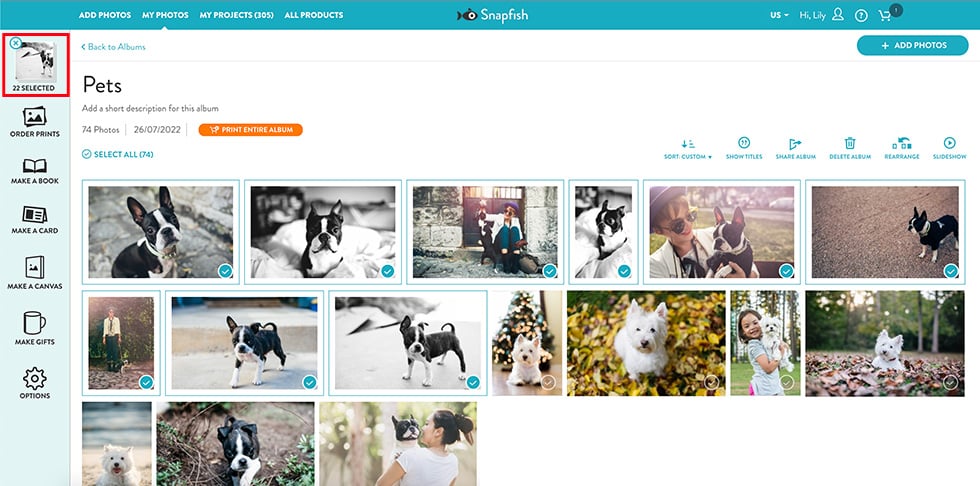
1. Start in your photos and albums and select your photos. Alternatively you can start from the Store, select PRINTS and then proceed to selecting your photos.
2. As you select your photos, they will become highlighted and are copied to the tray on the left.
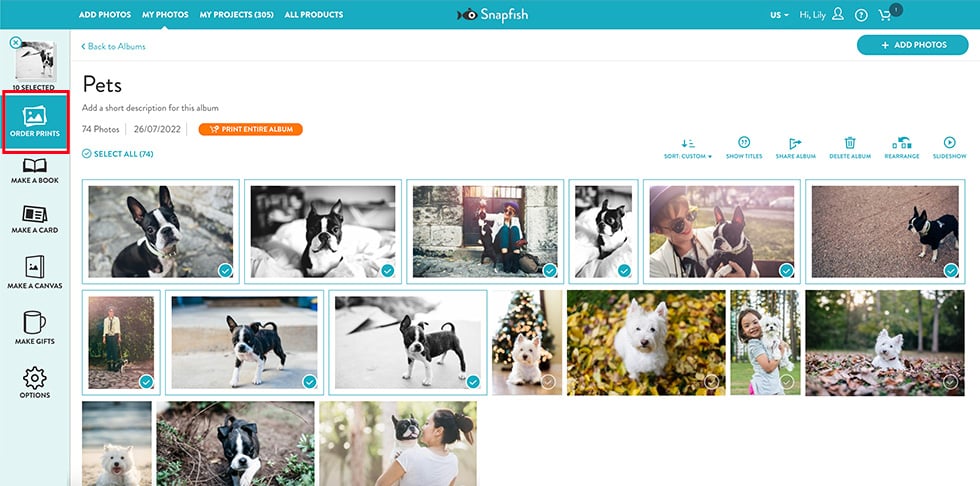
3. Select ORDER PRINTS from the left tool bar. This will take you to the prints builder with all of your selected photos.
TOP TIP: Order your prints in just a couple of clicks with Express Prints. Perfect for those who want to order 6×4″ prints in a hurry. Just click the “Express Order Prints” button while viewing your album to add it to your cart.
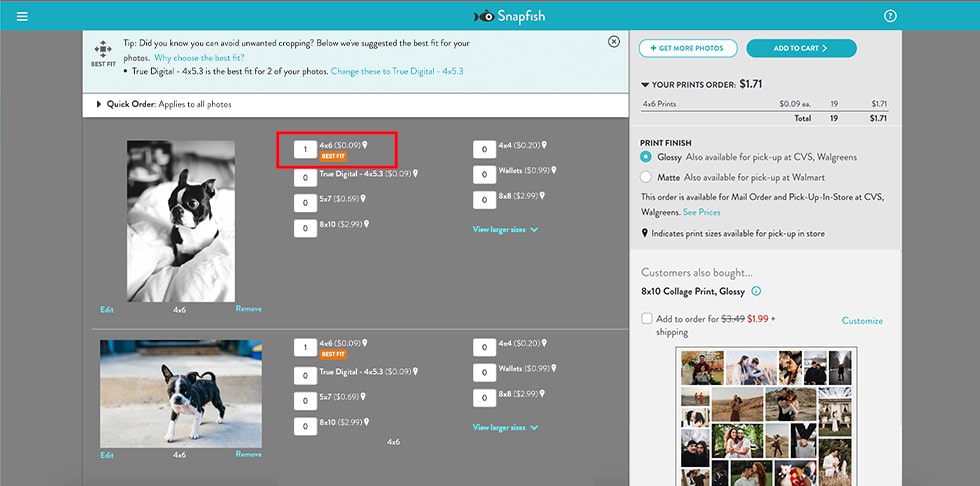
4. Now you are in the prints builder with your photos. Each photo is listed along with all available sizes and quantities for each. The builder selects 6×4” as the default size.
5. The default size is 6×4”, as it is the most popular print size. However the prints builder offers best fit suggestions. If you have photos with different aspect ratios it may suggest other print sizes for those photos. In this example if suggests the best fit for this photo as 5.3×4”.
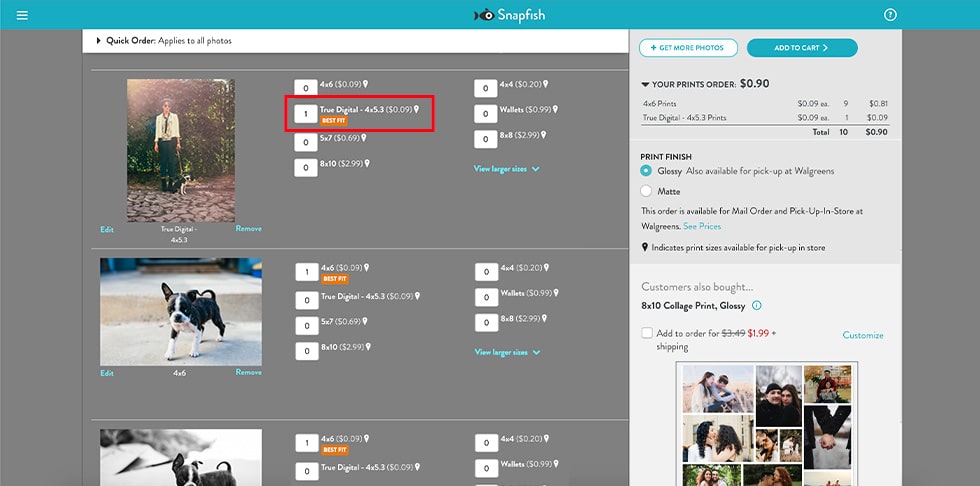
6. 5.3×4″ is our True Digital format. It allows you to match the dimensions of the photo produced by your digital camera to the dimensions of the print, therefore minimising cropping issues. This print size is specially designed for photos with a 4:3 aspect ratio, as produced by most digital cameras, our True Digital format produces an unmodified 5.3×4″ print.
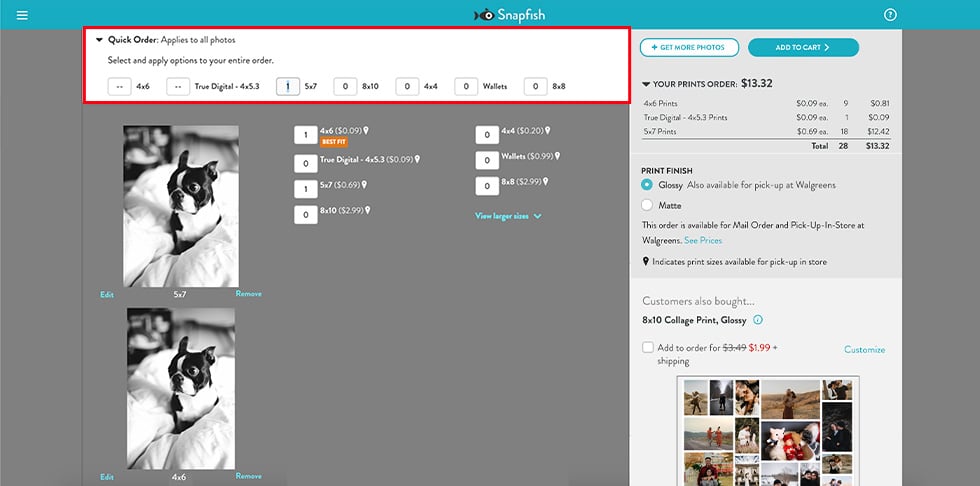
7. If you want to add a set of prints of all photos in a given size, you can use the ‘Apply to All’ form on top. In this example we will add a 7×5” print for each photo.
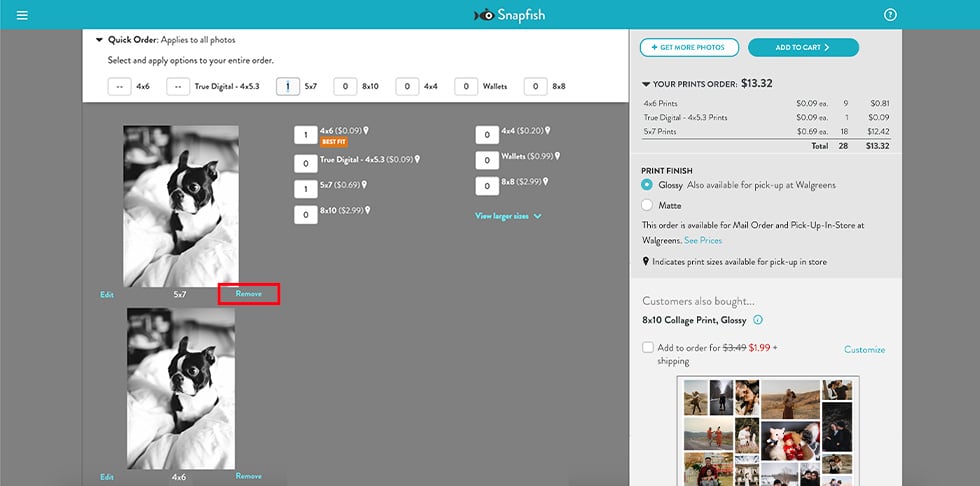
8. If you don’t want a 7×5” print of one of your photos, you can remove it.
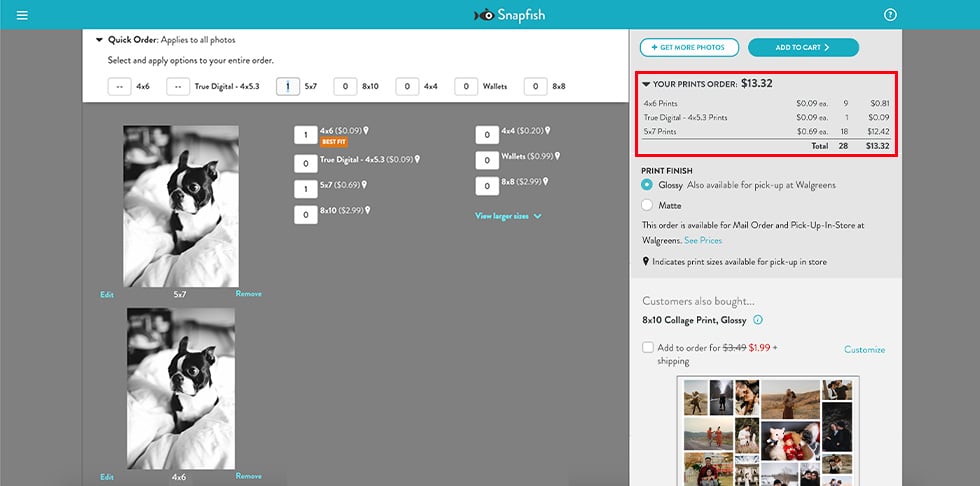
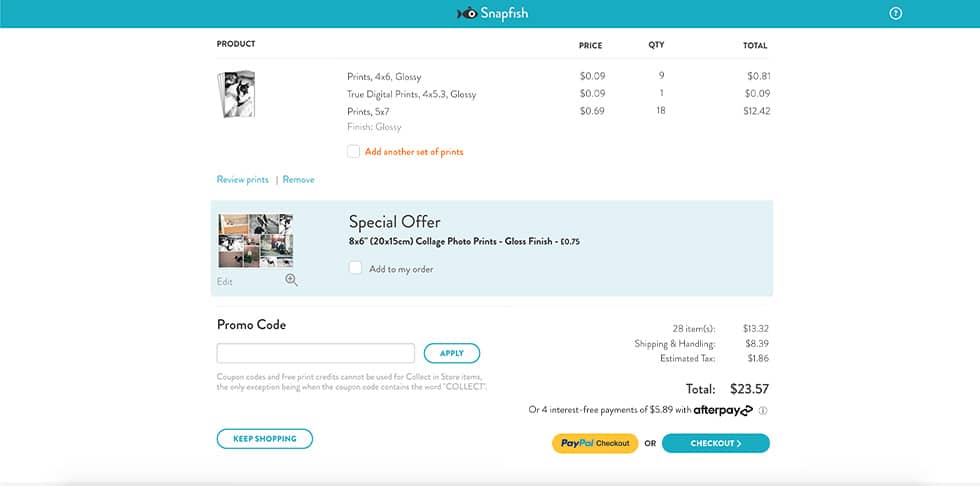
9. As you make changes to your order, the order summary updates and shows the quantities and cost for the order.
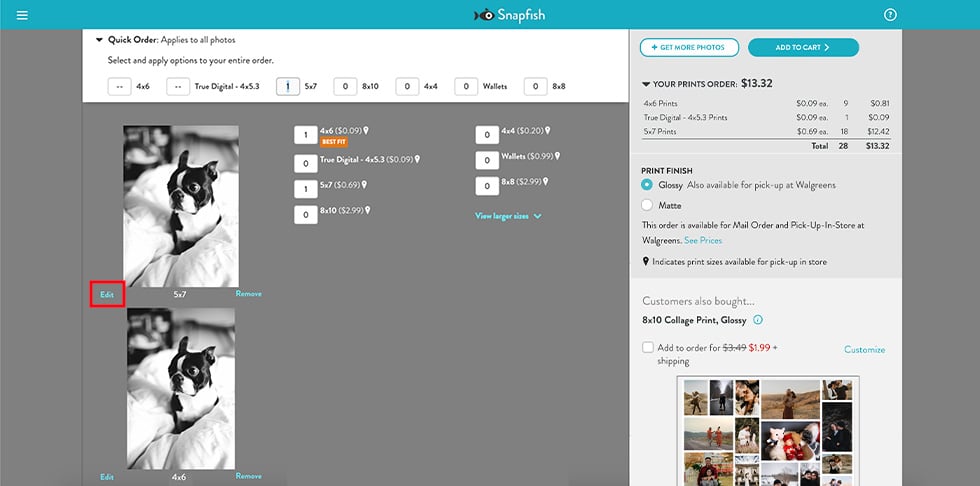
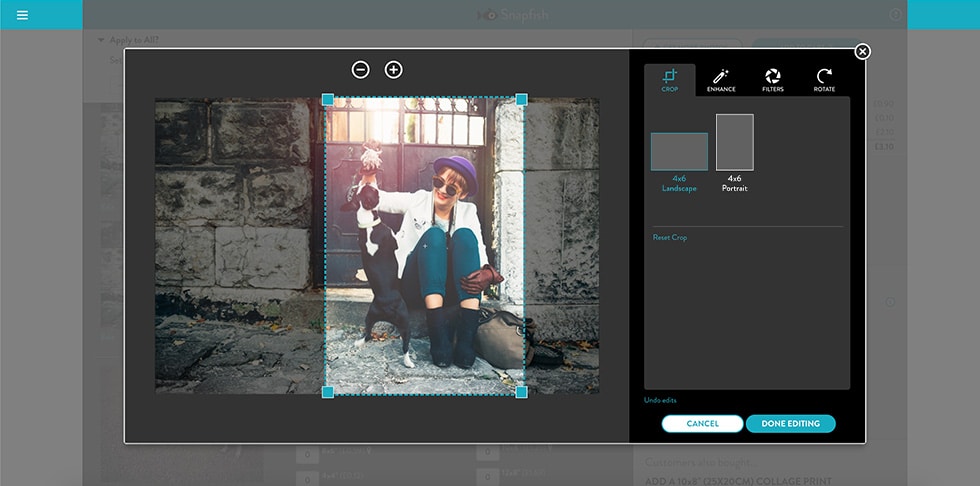
10. You can edit your prints by clicking on the crop button, this will take you to edit mode. In edit mode you can pan, zoom and rotate it.
Click ‘Edit’ to crop, pan, zoom and rotate your photos.
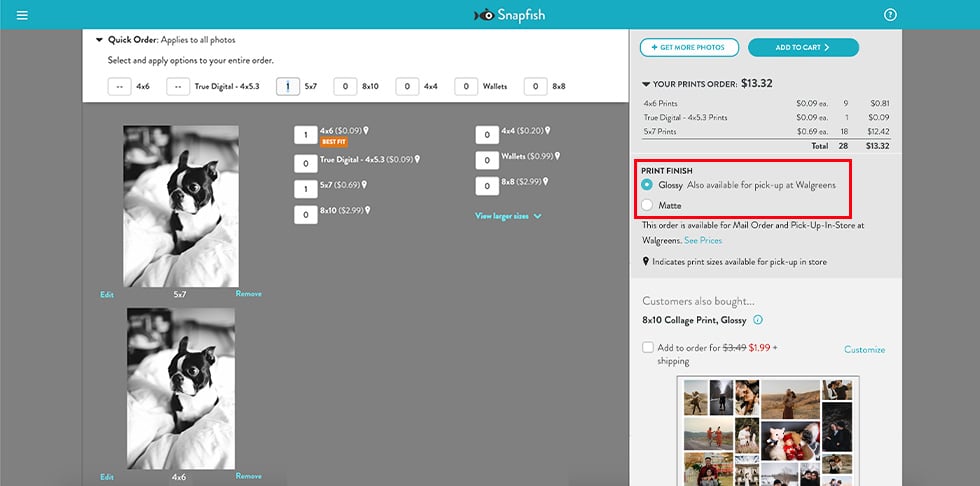
11. You can change the finish of your prints. You can choose between glossy and matt.
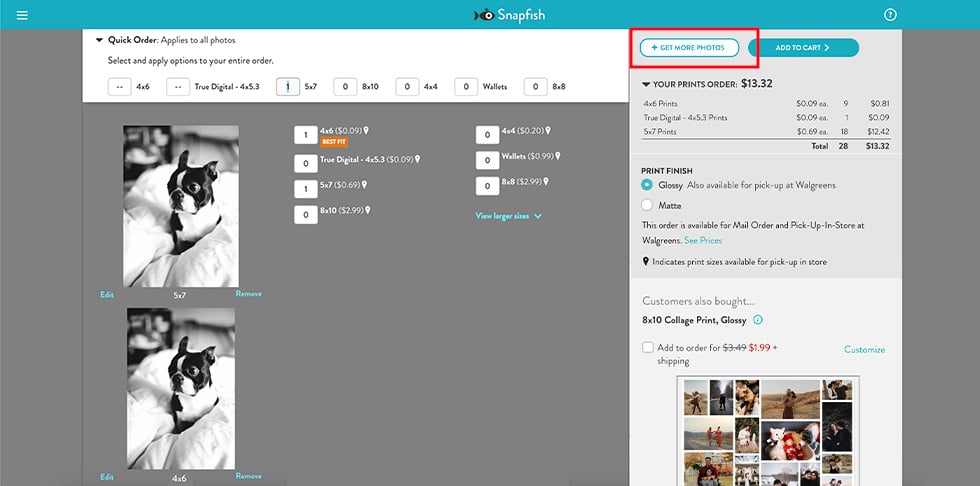
12. You also have the option to add more photos to your print order at any time by clicking on GET MORE PHOTOS.
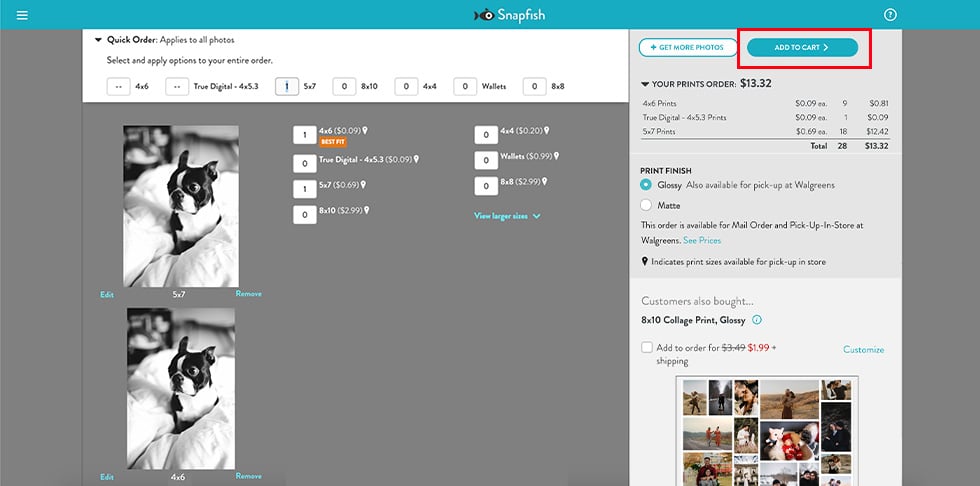
13. Once you are ready to place your order. Click ADD TO CART and proceed to shipping and payment options.
Now you’re equipped with all the knowledge you need to get the best of your photo prints. Head to our website to upload and print your photos.
*We also have a video tutorial on ‘How to order prints’, if you want to learn more head over there and watch our video now. *
Happy printing!
Snapfish + Macmillan are working in partnership to raise vital funds. For every greeting card or flat card set sold, Macmillan receive up to 15p.
What did you create on Snapfish? Share it with us on social media! You can tag us with @snapfishuk in your photos on Instagram or Facebook or use the hashtag #snapfishuk. Don’t forget to follow us on YouTube, Twitter and Pinterest, too. We love seeing what you create.
How to Order Prints 📸
Use our simple step by step guide to discover how to order prints with the new Snapfish prints builder.
1. Start in your photos and albums and select your photos. Alternatively you can start from the Store, select PRINTS and then proceed to selecting your photos.
2. As you select your photos, they will become highlighted and are copied to the tray on the left.
3. Select ORDER PRINTS from the left tool bar. This will take you to the prints builder with all of your selected photos.
TOP TIP: Order your prints in just a couple of clicks with Express Prints. Perfect for those who want to order 4×6 prints in a hurry. Just click the “Express Order Prints” button while viewing your album to add it to your cart.
4. Now you are in the prints builder with your photos. Each photo is listed along with all available sizes and quantities for each. The builder selects 4×6 as the default size.
5. The default size is 4×6, as it is the most popular print size. However the prints builder offers best fit suggestions. If you have photos with different aspect ratios it may suggest other print sizes for those photos. In this example if suggests the best fit for this photo as 4×5.3.
6. 4×5.3 is our True Digital format. It allows you to match the dimensions of the photo produced by your digital camera to the dimensions of the print, therefore minimising cropping issues. This print size is specially designed for photos with a 4:3 aspect ratio, as produced by most digital cameras, our True Digital format produces an unmodified 4×5.3 print.
7. If you want to add a set of prints of all photos in a given size, you can use the ‘Apply to All’ form on top. In this example we will add a 5×7 print for each photo.
8. If you don’t want a 5×7 print of one of your photos, you can remove it.
9. As you make changes to your order, the order summary updates and shows the quantities and cost for the order.
10. You can edit your prints by clicking on the crop button, this will take you to edit mode. In edit mode you can pan, zoom and rotate it.
Click ‘Edit’ to crop, pan, zoom and rotate your photos.
11. You can change the finish of your prints. You can choose between glossy and matt.
12. You also have the option to add more photos to your print order at any time by clicking on GET MORE PHOTOS.
13. Once you are ready to place your order. Click ADD TO CART and proceed to shipping and payment options.
Now you’re equipped with all the knowledge you need to get the best of your photo prints. Head to our website to upload and print your photos.
Happy printing!
We love seeing what you come up with! Please tag us @SnapfishUS and #snapfish on Facebook, Instagram & Pinterest. Check out the Snapfish site for even more custom gift ideas.